
Sign in
1 min read · 1 clip
Open a browser on your computer and go to saydi.ai/login. You'll see a few ways to sign in. Use the one your account was created with.
- Continue with Google if your company email runs on Google Workspace.
- Continue with Microsoft if your company email runs on Microsoft 365.
- Continue with Apple is for personal accounts created with an Apple ID.
- Email address and password only if someone gave you a password made specifically for Saydi.
The mistake almost everyone makes once
If you signed up with Google or Microsoft, the password box is not for you. Your email password is not your Saydi password, so typing it there will just give you an error. Click the Google or Microsoft button instead.
Change the interface language
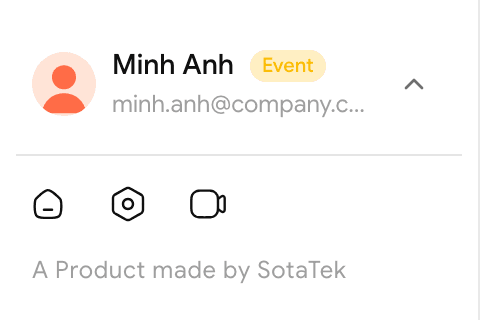
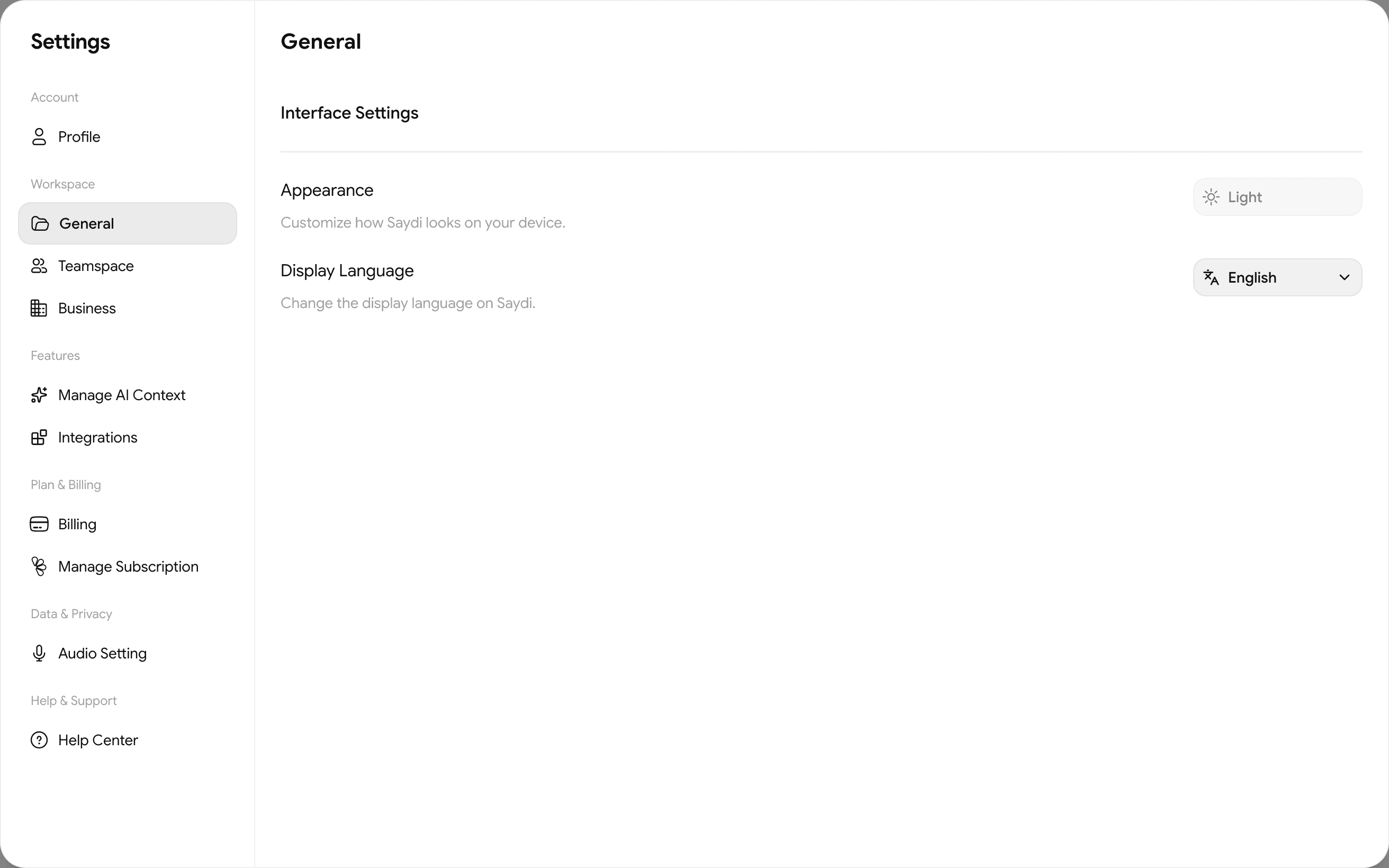
Click the Settings icon (the middle one of the 3 small icons at the bottom left), then General, then Display Language. You can also switch between light and dark mode here under Appearance.
About the button names in this guide
The screenshots and clips use the English interface, the app's default language. This guide keeps the English button names so they're easy to match on your screen.