
On your Mac
Saydi for macOS is a meeting assistant that lives in the menu bar. It shows your upcoming meetings, opens them for you, and translates or transcribes what is said, whether the audio comes from your microphone or from an application such as Zoom or Microsoft Teams. It uses the same account, credits and History as the website.
Install and sign in
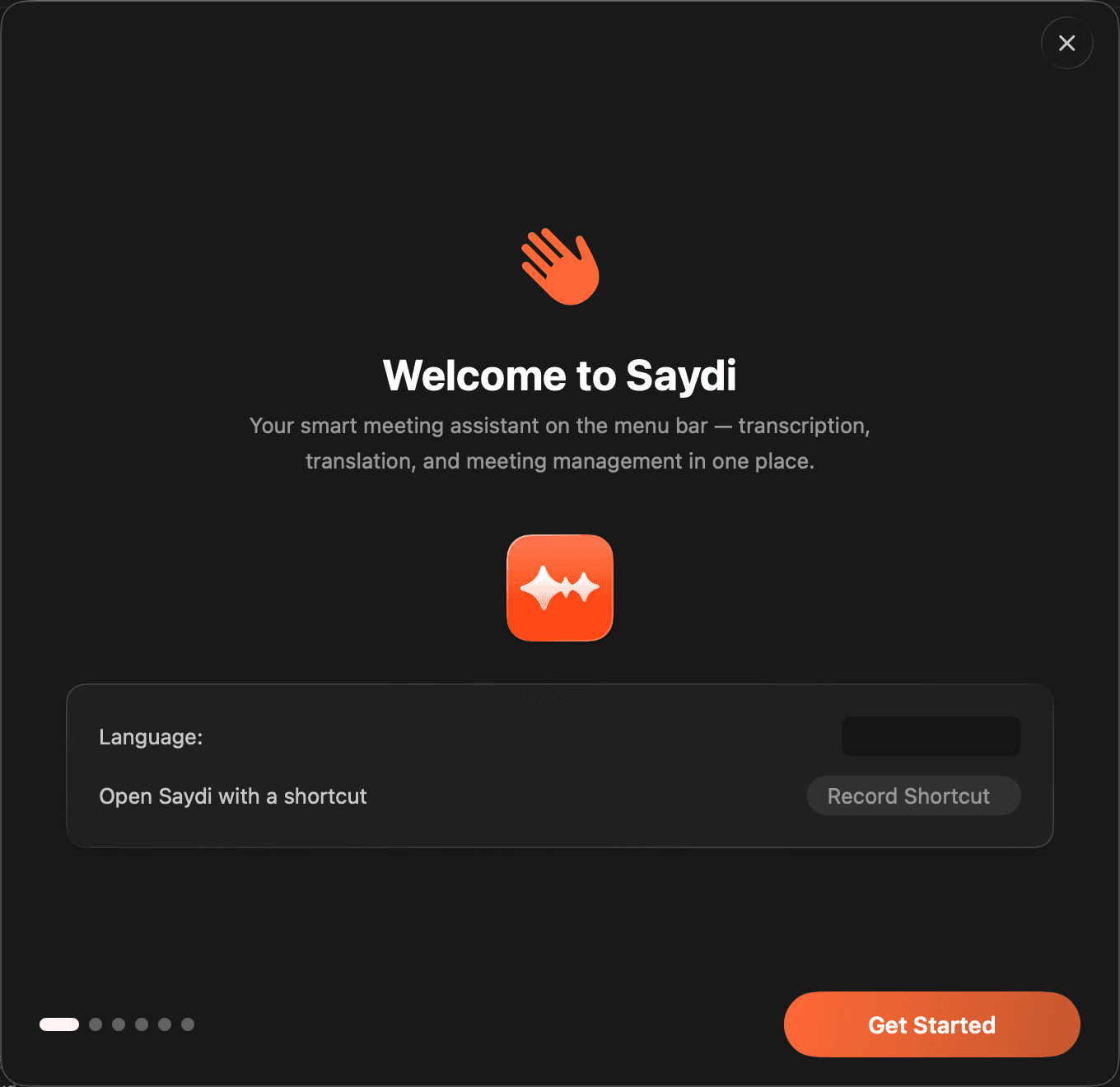
- Download the installer from saydi.ai/download (MacOS → Download). Requires macOS 14.6 or later.
- Open the
.dmgfile and drag Saydi into the Applications folder, then open it from there. The app is signed by the developer, so macOS opens it without extra steps. - On the welcome screen, choose the interface language (English or Vietnamese; System follows your Mac) and, optionally, record a keyboard shortcut that opens Saydi. Click Get Started.
- Sign in with Google, Apple or email, the same account you use on the website.
Permissions the app asks for
| Permission | Why | If you skip it |
|---|---|---|
| Microphone | To hear people in the room. | Microphone Audio is unavailable. |
| Screen Recording | To capture the sound of other applications (Computer Audio). macOS exposes application audio through this permission. | Computer Audio is unavailable; you can still use the microphone. |
| Calendars (optional) | To list upcoming meetings in the menu bar and join them automatically. | Saydi works as a translator only, without the meeting list. |
All three can be changed later in System Settings → Privacy & Security.
Translate a meeting
- Click the Saydi icon in the menu bar (or press the shortcut you recorded). The panel opens.
- Set the source and target languages. Swap Languages flips them.
- Choose the audio source: Microphone Audio for people in the room, Computer Audio for the other participants in an online meeting, or both.
- Click Start Recording. Text appears as people speak, with the original and the translation. Pause and Resume during breaks, Stop Recording at the end. Copy All puts the whole transcript on the clipboard.
The panel can be reduced to a compact view that floats over other windows. In compact view you can choose the layout (Side by Side or Stacked), what to show (Both Panels, Source Only, Translation Only), the text size and the theme (Light, Dark, Transparent). Turn on Hide from screen sharing so the translation window stays private when you share your screen in a call.
Meetings from your calendar
Connect macOS Calendar (recommended, any number of accounts) or Google Calendar in Settings → Calendars. Saydi then shows today's and tomorrow's meetings in the menu bar with the time until the next one, notifies you before a meeting starts (1, 3 or 5 minutes), and can Auto-Join by opening the meeting link in the app or browser you choose. Supported links include Zoom, Teams, Google Meet and any custom URL.
AI Context
Edit Context in the panel opens the same idea as AI Context on the website, arranged in four parts: General Information (domain, topic, speakers, organization), Custom Terms for brand names and jargon, Translation Terms for words that must be translated one way, and Background Text for longer notes or documents. AI Research can draft the context from a short description of the meeting.
History and settings
- History in the panel lists past sessions with search; open one to read or copy the transcript. The same sessions appear on the website.
- Settings → General: launch after login, interface language, keyboard shortcuts (open menu, join next meeting, create meeting).
- Settings → Links: which browser or application opens each kind of meeting link.
- The app updates itself and offers to install new versions.
Mac app, browser or extension?
| Situation | Recommended |
|---|---|
| Zoom, Teams or Meet as a desktop application on your Mac | Mac app: it captures the application's audio directly, no screen share needed. |
| Calls that run in the browser | [Chrome extension](/help-center/settings/integrations) |
| Meeting room, TV, events | [Website](/help-center/two-way) |
Screenshots of the app in use will be added