Chrome extension
The Saydi extension puts live translation in a panel at the side of your browser, next to whatever you're looking at: a Teams, Meet or Zoom call, a webinar, a YouTube video. Same account, same credits, same History as the website.
Install and sign in
- In Chrome, Edge, Cốc Cốc or Brave, open the Saydi AI Voice Translator page on the Chrome Web Store and click Add to Chrome, then Add extension.
- Click the puzzle-piece icon next to the address bar and pin Saydi, so its button is always visible.
- Click the Saydi button. A panel opens on the right. Click Sign In and choose your Google account (or sign in the way you usually do). You only do this once.
- The first time, the panel offers a short tour. Take it or click I'll explore on my own.
Translate what's playing in the browser
- Open the call or video you want translated, in its own tab.
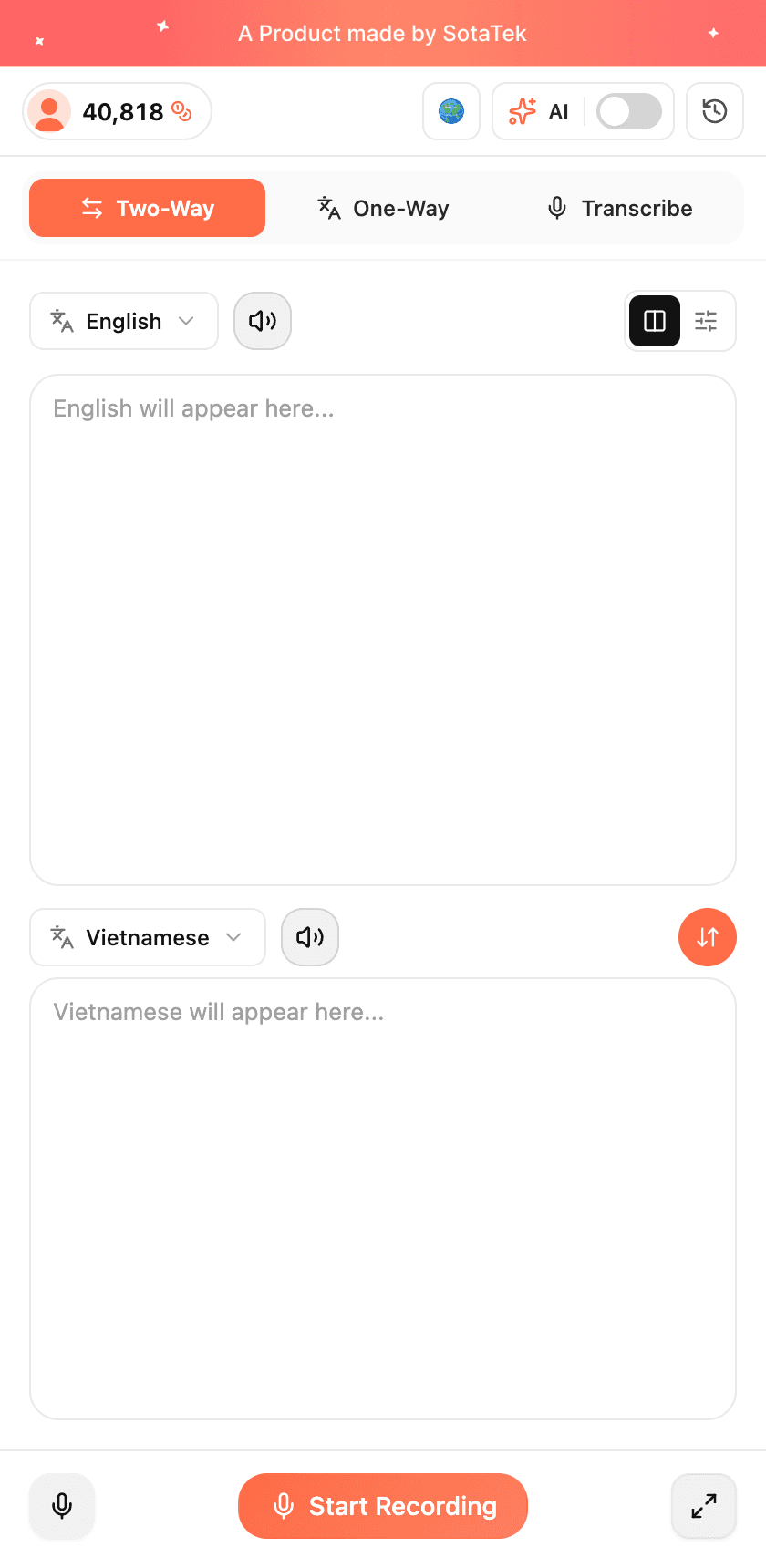
- Open the Saydi panel and pick a mode: Two-Way for a conversation, One-Way for one speaker, Transcribe for text only.
- Set the 2 languages.
- Click Audio settings (the small button by the mode tabs) and choose where the sound comes from: your microphone for people in the room, this tab for a call or video playing in the browser, or both.
- Click Start Recording. If you chose the tab, the browser asks which tab to share; pick the one with your call and make sure Share audio is ticked.
- The transcript and translation appear in the panel as people speak. Click the stop button when you're done. The session is saved in History.
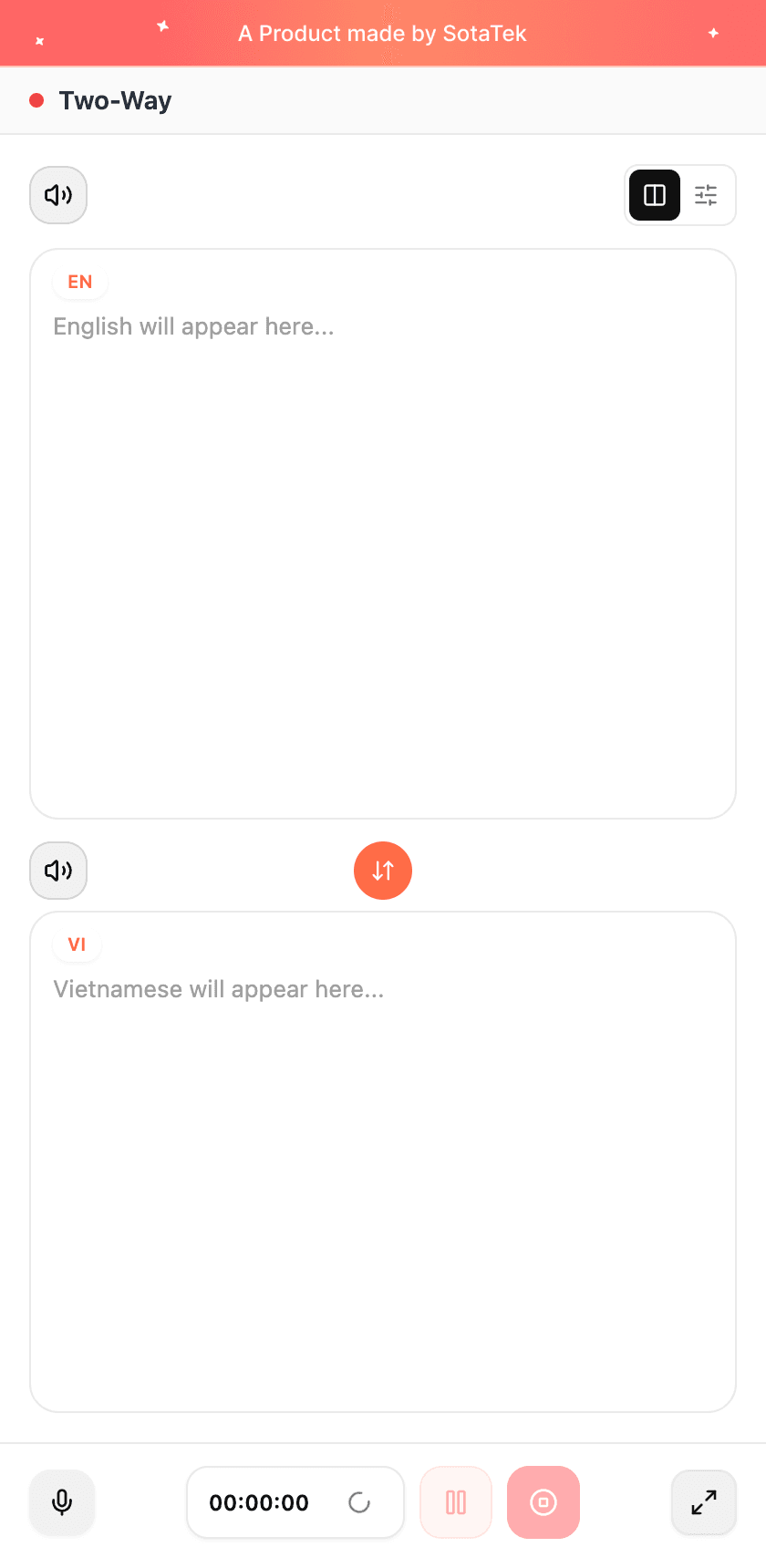
Audio settings (the small button next to the mode tabs) lets you choose between your microphone, the tab's audio, or both, just like on the website. The speaker icons turn Voice on, which reads the translation aloud.
The floating Saydi icon
Once the extension is installed, a small Saydi icon sits on the right edge of web pages. Click it and it unfolds into 3 mode buttons (Two-Way, One-Way, Transcribe). Pick one and a small floating caption window opens on top of the page, so you can keep watching the call and read the translation at the same time. It stays on top even if you switch tabs.
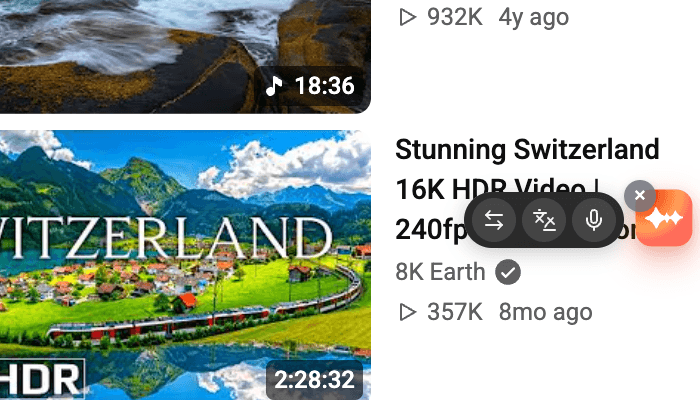
Don't want it on a site? Click the × next to the icon and choose Turn off temporarily, Turn off on this site or Turn off permanently. You can change that later in the extension's Settings page.
Settings page
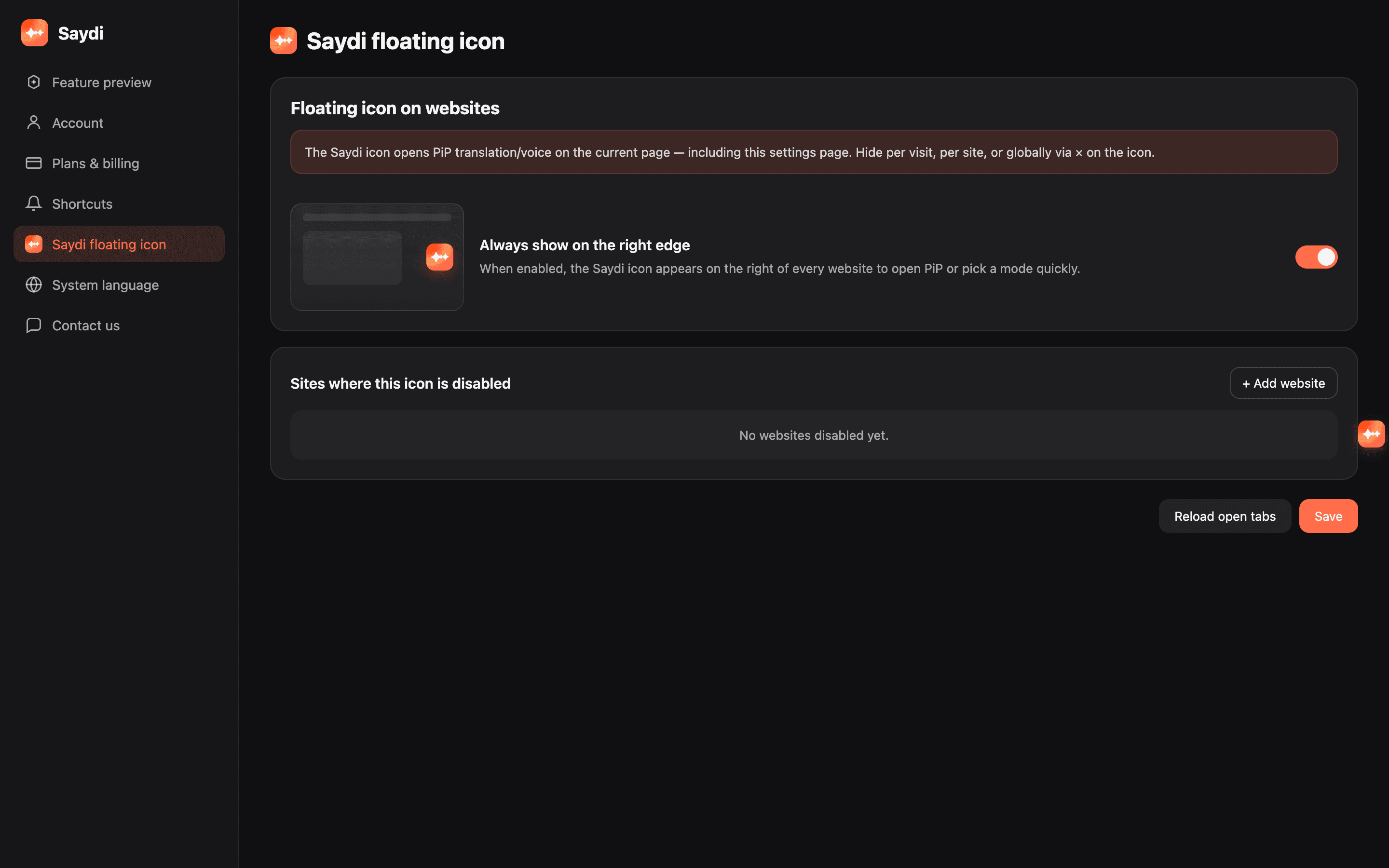
Right-click the Saydi button → Options (or open Settings from the panel). Here you'll find your account and plan, keyboard shortcuts, the floating icon rules, and the interface language.
Which should I use, the extension or the website?
| Extension | Website | |
|---|---|---|
| Best for | Calls and videos you watch in the browser | Meetings in a room, events, the big screen |
| Install | Once, from the Chrome Web Store | Nothing |
| Works with | Chrome-based browsers on a computer | Any browser, any computer |
| Shows the other people the translation | Share your screen with the panel visible | Share the Saydi window or put it on the TV |
For step-by-step guides per app, see Teams, Google Meet and Zoom.
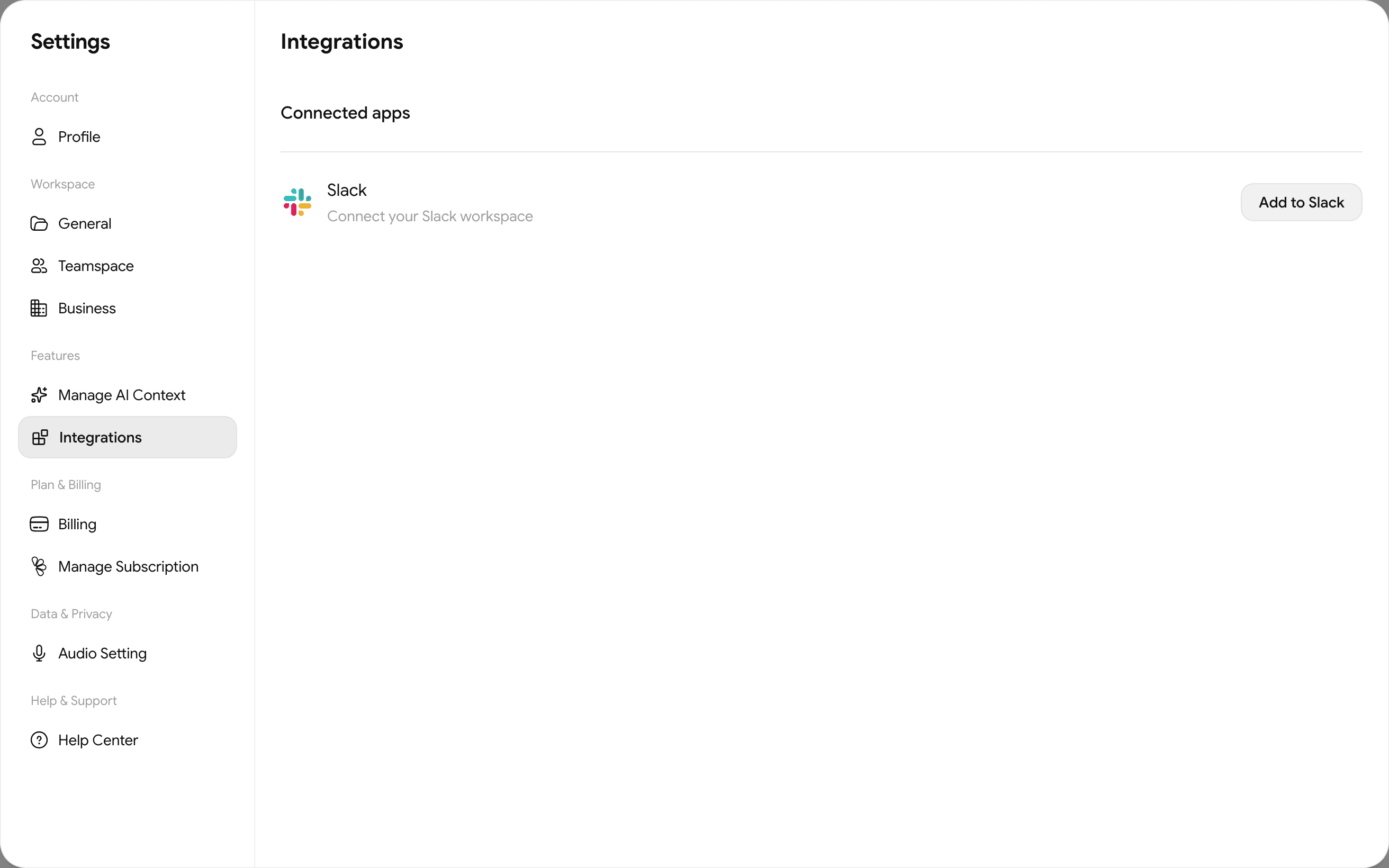
Slack
Settings → Integrations → Add to Slack on the website connects Saydi to your Slack workspace. Your Slack admin may need to approve it.