
Try it in 5 minutes
Four things to try on your own, in the browser: nothing to install, nobody else needed, about a minute each. Open Saydi in a second tab and follow along.
Open Saydi →Hear yourself speak Vietnamese
Say two sentences in English. A moment later they appear in Vietnamese, and Saydi reads them aloud in a natural Vietnamese voice.
- Open Live Translate. The left side says Auto-detect; you never tell Saydi what you speak.
- Set Translate to to Vietnamese, click Voice next to it and turn on Start Playback.
- Click Start Talking, allow the microphone, and talk. Then switch to any other language: Saydi supports more than 60 and keeps adding more.
Play both sides of a conversation
No second person needed. Start with the left box on Auto-detect, then change it to English before you start so both directions are translated.
- Stay in Live Translate. The left box is on Auto-detect and Translate to is Vietnamese. The left column shows the original, the right column shows the translation.
- Change the left box from Auto-detect to English. Now English and Vietnamese are translated both ways.
- Click Start Talking and take turns. Each language stays in its own column; click Done when finished.
Subtitle a video you do not understand
Any YouTube video, webinar or online course gets live subtitles in your language, even when the video has none.
- In another tab, open a video in a language you do not know and let it play.
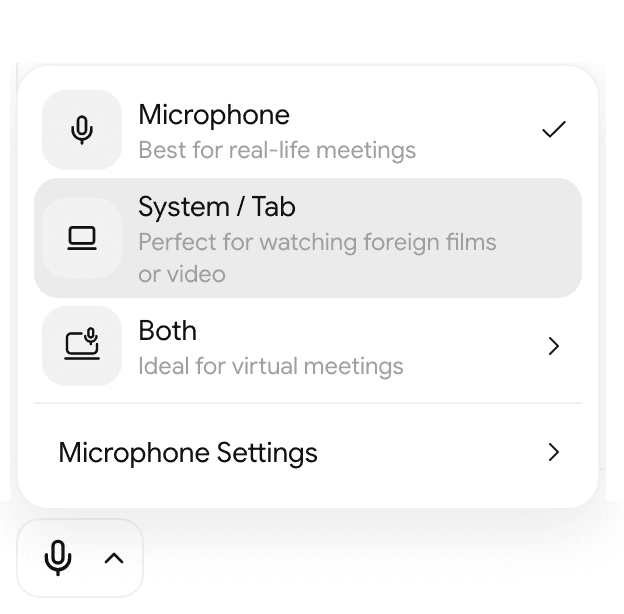
- In Saydi, set the left box back to Auto-detect (step 2 left it on English), then set Translate to to your language. Choose System / Tab, pick the video tab and tick Share audio.
- Click Start Talking. Subtitles appear as the video plays.
Get a summary of what you just said
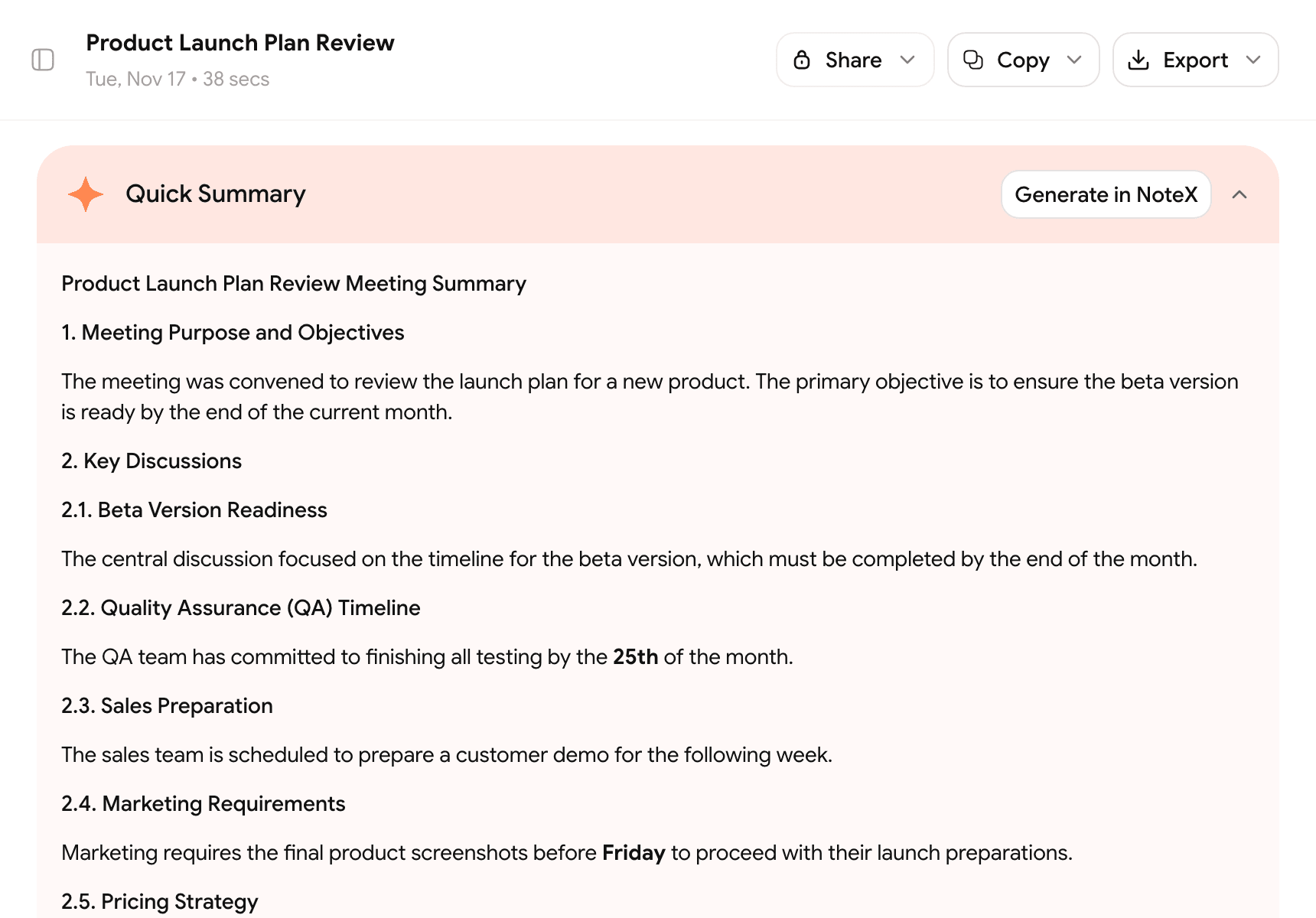
Everything you tried is saved in History. Quick Summary gives you the topic, the key points and any tasks you mentioned, in the language you choose.
- Click Done to end the session.
- Open History in the left column and click the session you just made.
- Click AI Summary in the Quick Summary banner, then Generate Summary. The recap and action items appear in about 20 seconds. Use Regenerate to change the language.
Prefer to try it on your phone?
The Saydi app does the same, with your phone held between you and the other person.
Nothing showing up?
What next?
| You want to | Go to |
|---|---|
| Use it on a trip or with a customer | On your phone · Travelling abroad |
| Follow a lecture, webinar or online course | Lectures & studying · Videos & courses |
| Switch between listening and back-and-forth in the same session | Live Translate |
| Translate a Zoom, Teams or Meet call | Teams, Meet & Zoom |
| Put subtitles on hundreds of phones at an event | Events |