
Display
1 min read · 2 clips
Click the 3-slider icon at the top right, next to AI Context.
Show Saydi on a TV or projector
This optional setup works with One-Way, Two-Way and Transcribe.
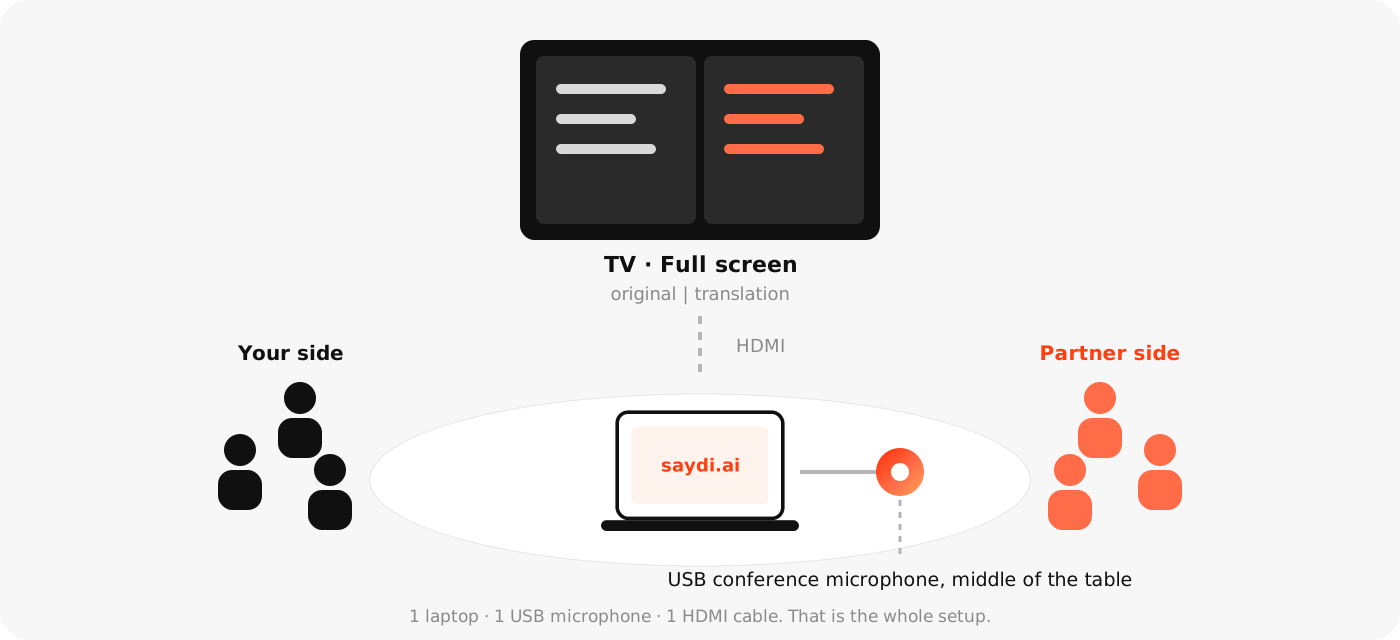
- Connect the computer to the TV or projector with HDMI and choose Extend display on the computer.
- In Saydi, click Full screen, then move the window to the TV or projector.
- Presenting slides too? Use Mini window to keep the translation visible above them.
- Stand at the farthest seat and increase Text Size until the words are easy to read.
| Item | What for |
|---|---|
| Speaker Labels | Shows who said each line. On for meetings with several people. |
| Free scroll | Scroll back to earlier lines without the screen jumping down. |
| Display mode | Split: 2 columns side by side. List: one line after another. |
| Text Size | Matters on a TV. 1–10; large rooms use 6 or more. |
| Text · Highlight · Timestamp | Colours for the text, the line being translated, and the timestamps. Useful on dark backgrounds or to match event branding. |
| Layout | Row: left–right. Column: top–bottom, for portrait screens. |
What good looks like
The text on the TV is readable from the farthest seat in the room.