
Plans, credits and billing
Saydi charges by the minute of audio it processes, using credits. Your plan gives you a monthly allowance, and you can top up any time. Here's how to read your balance, buy more, and manage your subscription.
How credits work
Every translation or transcription uses credits, based on how long the audio is and which features you use. The rates are on saydi.ai/pricing:
| What you use | Credits |
|---|---|
| Voice to text (transcription and translation on screen) | 30 per hour |
| Voice to voice, basic (the Voice button, standard voices) | 300 per hour |
| Voice to voice, premium (higher-quality voices) | 600 per hour |
So a 1-hour meeting with the translation on screen costs about 30 credits. An event also charges a slot fee when you create it: 100 credits per estimated attendee, shown in the form before you click Create. Turning on Voice costs a lot more, which is one more reason to leave it off in a meeting room.
There are 2 kinds of credits:
- Monthly credits come with your plan. They reset at the start of each billing period. Unused ones don't carry over.
- Top-up credits are ones you buy separately. They never expire, and Saydi only starts using them once your monthly credits are gone.
See your balance
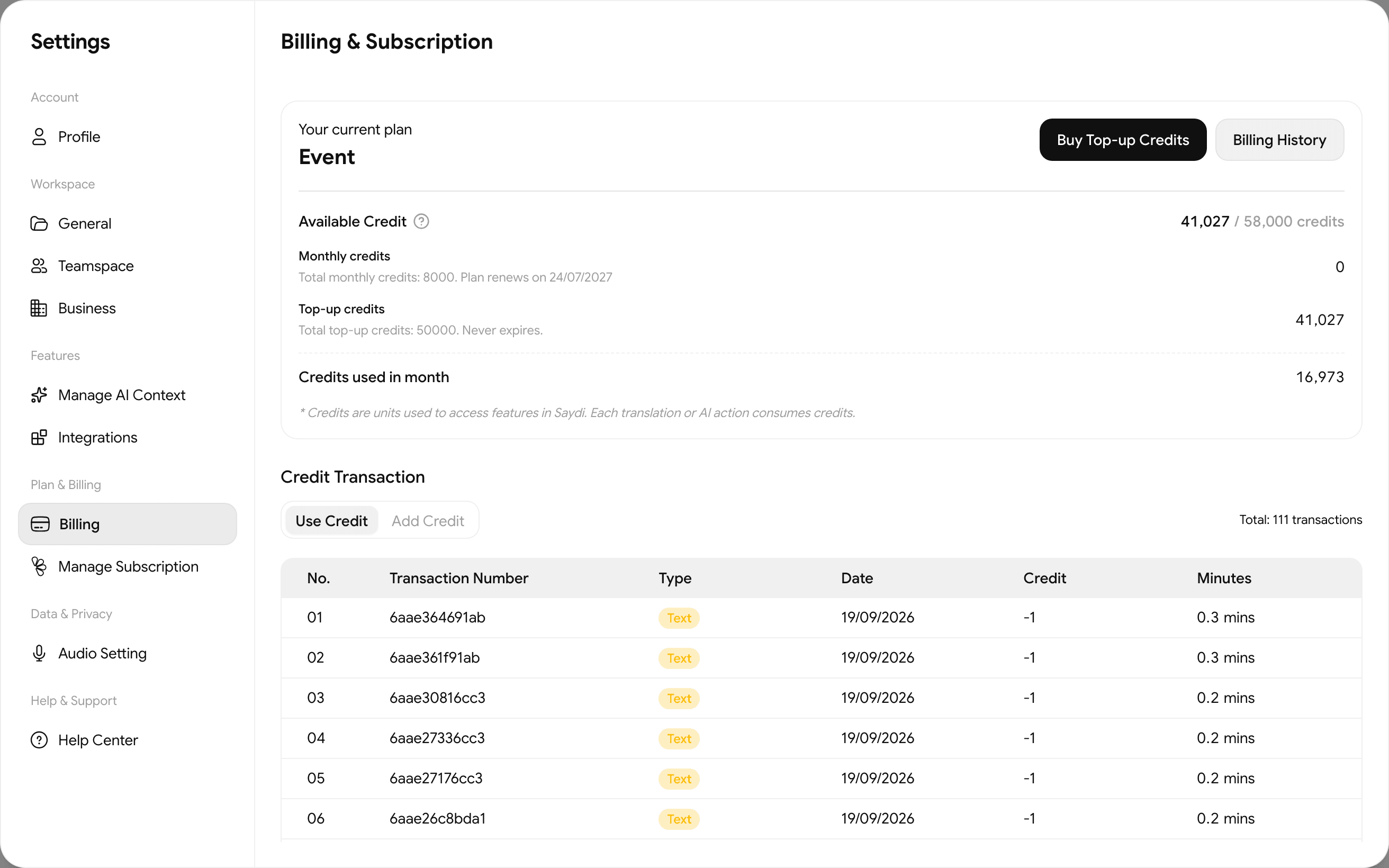
Click the Settings icon (the middle of the 3 small icons at the bottom left), then Billing. At the top you'll see:
- Your current plan, for example Free, Pro, Team or Event.
- Available Credit: what you have left, out of your total.
- Monthly credits and Top-up credits, shown separately, with the date your plan renews.
- Credits used in month.
Below that is the Credit Transaction list: one line per session, with the type (Text for on-screen translation, Text, Voice when the Voice button was on, Slot fee for event seats), the date, credits used and minutes. Switch to the Add Credit tab to see your purchases.
You can also see the team balance without opening Settings: click the workspace name at the bottom left. See Members & credits.
Buy top-up credits
- Settings → Billing → Buy Top-up Credits.
- Pick a pack. The app shows the current packs and prices; at the time of writing they start at a few dollars for a few hundred credits.
- Pay by card. The credits appear in your balance right away and never expire.
Top-up credits stay with you
Change or cancel your plan
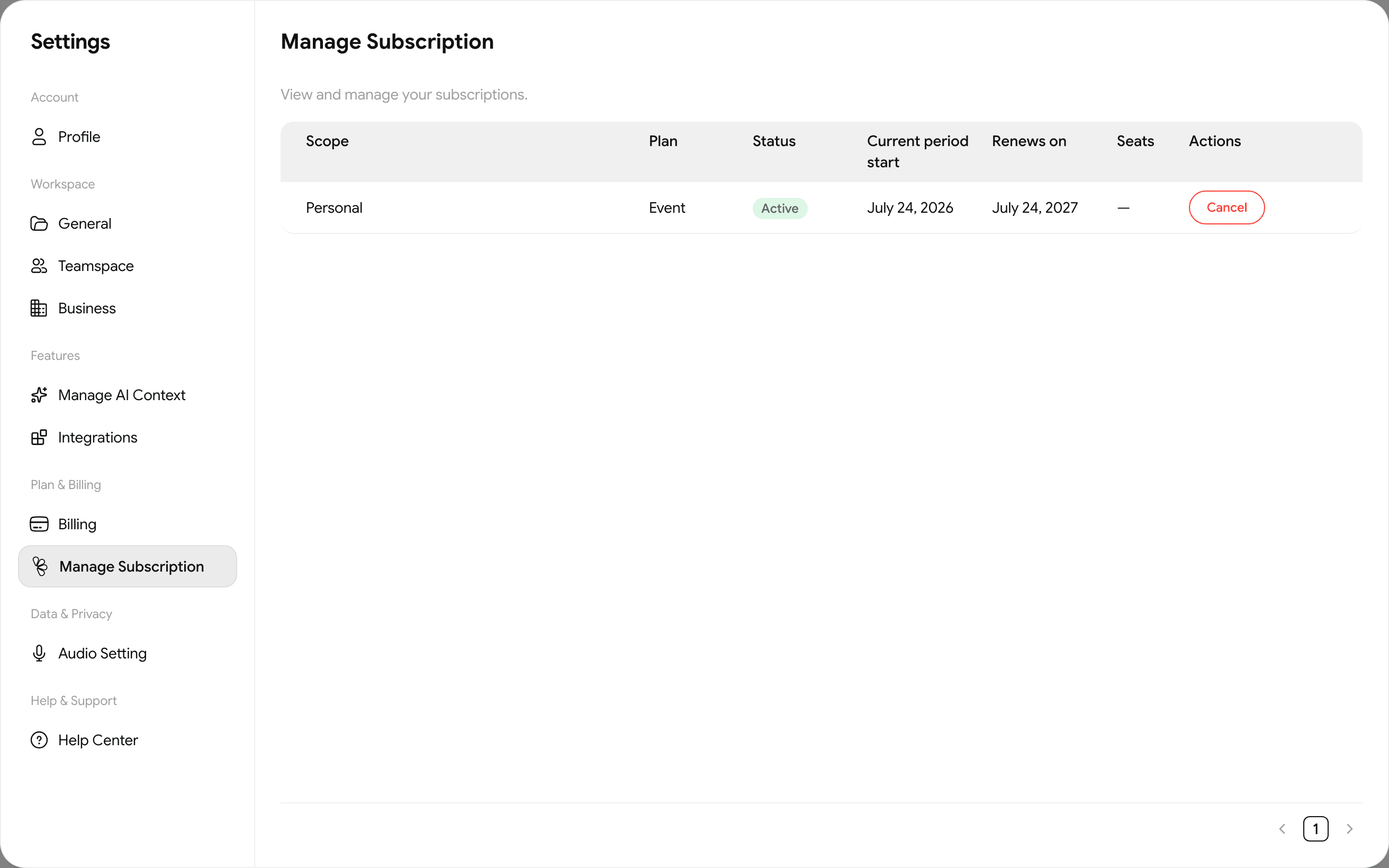
Settings → Manage Subscription shows each subscription you have, with its plan, status, current period, renewal date and seats. Use Cancel here to stop the renewal. You keep access until the end of the period you've paid for.
To move to a bigger plan, go to saydi.ai/pricing and choose it while signed in.
Invoices and billing history
Settings → Billing → Billing History lists your payments. Each one has a receipt you can download for your records.
Company accounts
If your company has a Business plan, credits sit in a shared pool for the whole workspace, members are unlimited, and the admin sees everyone's usage in Settings → Business. Adding members or buying more credits usually goes through your company's contract rather than the in-app packs. Ask your admin, or contact the Saydi team.