
Stage tech
1 min read
This page is for the venue's sound or technical crew. If that's not you, just send them the link. 2 things matter: clean audio into Saydi and, if used, subtitles on the big screen in the right frame.
1. Audio: from the mixer, not the laptop mic
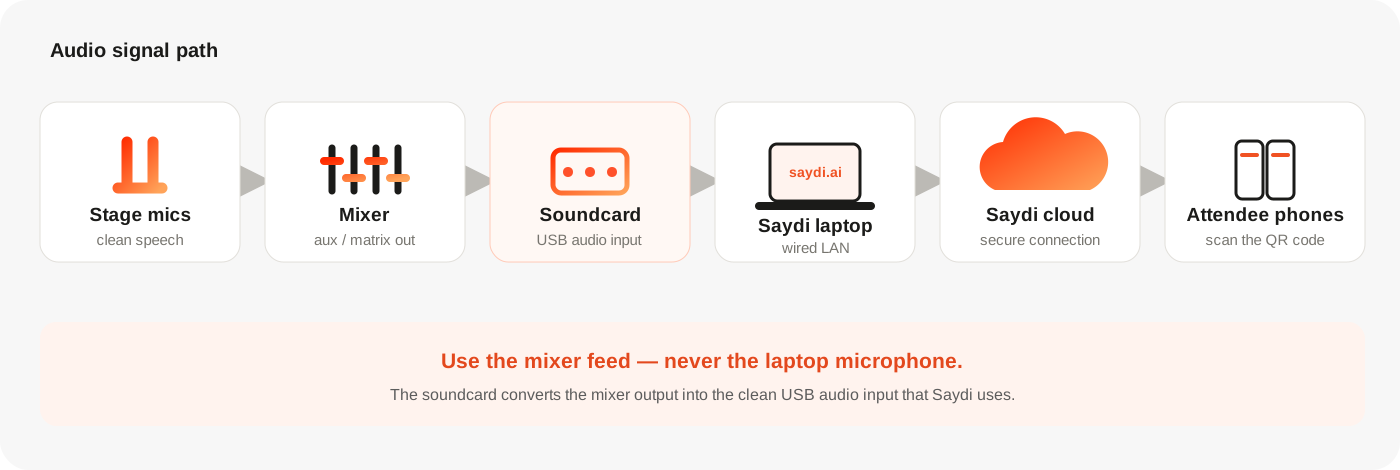
Prepare these three things
- A mixer with a clean speech feed.
- A soundcard to bring that feed into the Saydi laptop.
- Wired LAN for a stable internet connection.
| Mixer output | You need | Notes |
|---|---|---|
| XLR | XLR → USB sound card (or XLR → 3.5 mm if the mixer has a line-out) | Cleanest |
| 3.5 mm AUX | 3.5 mm → line-in / USB sound card | Common in mid-size halls |
| USB | Mixer with USB audio out → straight into the computer | Pick the mixer as the input device in Saydi |
In Saydi: mic button, bottom left → Microphone → pick the sound card / mixer by name. Speak from the stage and watch the sound bars move.
Don't record through a room mic
A laptop mic near the speakers = echo + noise = errors. If the venue can't split audio from the mixer, tell Saydi in advance so we can plan an alternative.
2. Subtitles on the big screen
- Simple: the Saydi computer on HDMI to the LED / projector, Full screen, text size in Display.
- Inside a livestream or a video mix (OBS, vMix): show the event's attendee page as a browser source and crop it to a subtitle bar. Steps for OBS below; vMix works the same way with its Web Browser input.
Subtitles in OBS, step by step
- Open the event's Host page and click Copy link. The link looks like
https://saydi.ai/event/123456. - In OBS, in the Sources panel click + → Browser. Name it Saydi subtitles.
- Paste the link into URL. Set Width 1920 and Height 1080. Tick Shutdown source when not visible off, so it keeps running between scenes.
- Click OK. On the page inside OBS, pick the subtitle language once with Translate to. Right-click the source → Interact if you need to click inside it.
- Crop it to just the subtitle area: hold Alt and drag the edges of the source in the preview (or use Transform → Edit Transform → Crop). Move it to the bottom of the frame as a lower third.
- Optional: right-click → Filters → add Color Correction to dim the background, or use the attendee page's Enter fullscreen for larger text before cropping.
Start the event in Saydi as usual. When the host clicks Start Talking, the subtitles appear inside your stream.
3. Network
Wired LAN, ≥ 2 Mbps dedicated, ping to Singapore < 100 ms. Port 443/TCP outbound. Details → Network requirements.
4. 60 minutes before doors
- Mixer audio into Saydi: sound bars move when someone speaks on stage.
- Event is Live; subtitles readable on 2 phones (Wi-Fi and 4G).
- Big screen (if any) shows the right frame; text readable from the back row.
- Technical contact + channel to Saydi connected.